How to Build an n8n Sub Workflow and Handle What Goes Wrong
Build an n8n sub workflow step by step, then see what the parent really receives when it fails, returns nothing or gets the wrong type. Every step tested on n8n 2.43.4.

Table of Contents
You will build a small "normalize contact" n8n sub workflow, call it from a parent, and see what happens when one record is bad. I tested the build and the failure cases on n8n 2.43.4 in Docker, so the error messages here are the ones I saw. Per the n8n docs, sub workflow runs do not count toward your plan's execution limit.
Most walkthroughs end at the happy path. What I wanted to know is what the parent receives when the sub workflow fails, returns nothing or gets the wrong type. One answer: a branch that ends on nothing drops records without any error.
Before you start
- n8n: any recent version, Cloud or self hosted. I used 2.43.4, the latest n8n release when I tested, published October 12, 2026. Converting existing nodes into a sub workflow needs 1.97.0 or later, per the n8n docs.
- Cost: per the n8n docs, sub workflow executions do not count toward your plan's monthly execution or active workflow limits, so splitting a workflow does not raise your bill.
- Skills: you should be comfortable adding nodes and mapping fields. No code beyond two short expressions.
- A way to trigger the parent: I used a webhook so I could run the whole thing from the terminal. A manual trigger works for the first test.
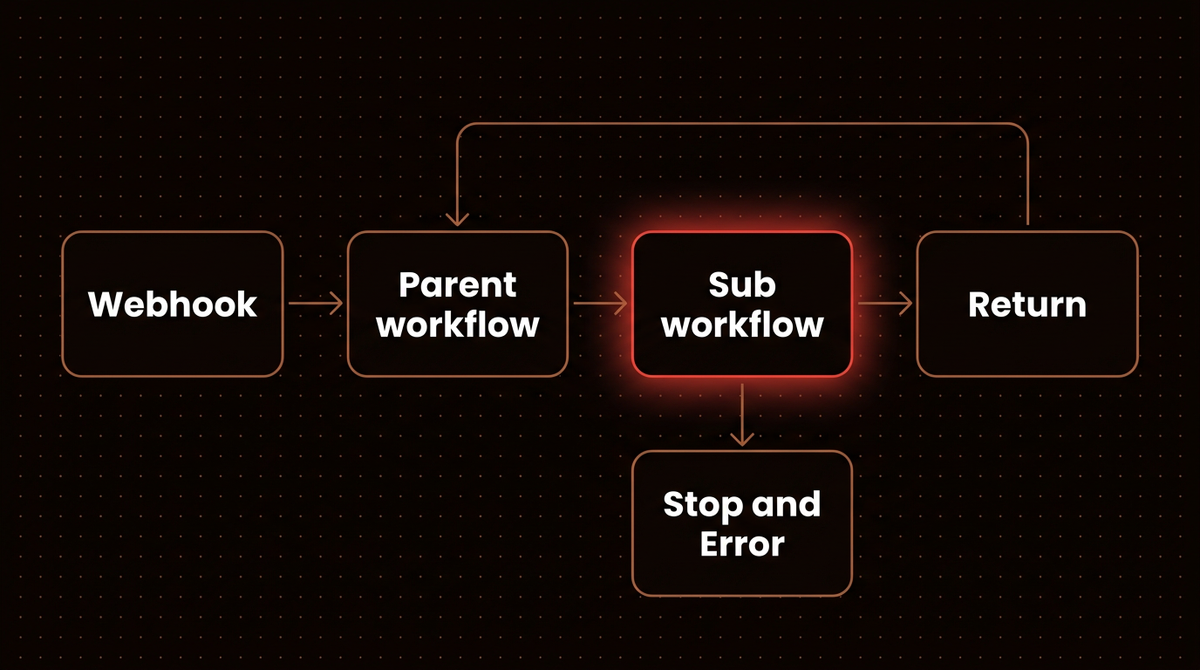
Step 1: Decide what belongs in an n8n sub workflow
Pull a piece out when two or more workflows need it, or when one workflow has grown so large that you scroll to find things. The n8n docs also list memory problems in very large workflows as a reason to split.
My test for a good candidate is a clear input and a clear output. "Take a contact, return a cleaned contact" qualifies. "Do the middle third of my lead flow" does not.
If you already have the nodes, the docs describe a shortcut (I did not test it): select them, right click the canvas background and choose Convert to sub-workflow. The selection cannot include trigger nodes, and only one node in it may connect in from outside and only one out, so a branching selection will be refused. The docs also say you must set type constraints on the new trigger yourself, because the conversion leaves inputs and outputs open to any type.
Step 2: Create the n8n sub workflow and define its inputs
- Create a new workflow and name it something a stranger would understand, such as
Sub: Normalize contact. - Add the trigger. Search for Execute Sub-workflow Trigger. The canvas labels it When Executed by Another Workflow.
- In the trigger node, set Input data mode to Define using fields below and add two fields:
emailandname, both type String.
The trigger offers three input modes. Define using fields below gives the calling node a ready made mapping form. Define using JSON example infers the shape from a sample object. Accept all data takes anything and, in the docs' words, leaves the sub workflow to handle input inconsistencies itself. I use the first one whenever I own both sides.
Warning: typed inputs are not required inputs. I left Required off, called the sub workflow without a name, and it ran happily with name set to null. An empty string passed too. If a field matters, check it inside the sub workflow.
The same screen has a setting worth knowing. Open Options, then Settings, and look for This workflow can be called by. I set it to nobody on a throwaway copy and the parent failed with The sub-workflow (...) cannot be called by this workflow. That is the message to search for if a call that worked yesterday suddenly stops after someone tightens permissions.
Step 3: Build the logic and return one clear shape
Add an If node after the trigger: does {{ $json.email }} contain @? On the true branch add an Edit Fields node named Return that sets three fields:
email  = {{ $json.email.trim().toLowerCase() }}
name   = {{ $json.name.trim() }}
domain = {{ $json.email.trim().toLowerCase().split('@')[1] }}
One caution: my Return node runs .trim() on name, and in my missing name test the row still came back with name as null instead of an error. Guard it with ($json.name || '').trim() if you want an empty string instead.
On the false branch add a Stop and Error node with the error message {{ 'Invalid email: ' + $json.email }}. The name Return is mine; what matters is that the last node of the sub workflow sends its data back to the calling node, so that node decides the shape the parent sees.
If you would rather import than click, here is the exact workflow I tested. Copy it, then paste it onto an empty canvas (the id is just a label from my test setup), which n8n supports with Ctrl + V or Cmd + V.
{
  "id": "subNormContact01",
  "name": "Sub: Normalize contact",
  "nodes": [
    {
      "parameters": {
        "inputSource": "workflowInputs",
        "workflowInputs": {
          "values": [
            {
              "name": "email",
              "type": "string"
            },
            {
              "name": "name",
              "type": "string"
            }
          ]
        }
      },
      "id": "a1",
      "name": "When Executed by Another Workflow",
      "type": "n8n-nodes-base.executeWorkflowTrigger",
      "typeVersion": 1.1,
      "position": [
        0,
        0
      ]
    },
    {
      "parameters": {
        "conditions": {
          "options": {
            "caseSensitive": true,
            "leftValue": "",
            "typeValidation": "strict",
            "version": 2
          },
          "conditions": [
            {
              "id": "c1",
              "leftValue": "={{ $json.email }}",
              "rightValue": "@",
              "operator": {
                "type": "string",
                "operation": "contains"
              }
            }
          ],
          "combinator": "and"
        },
        "options": {}
      },
      "id": "a2",
      "name": "Email looks valid?",
      "type": "n8n-nodes-base.if",
      "typeVersion": 2.2,
      "position": [
        220,
        0
      ]
    },
    {
      "parameters": {
        "assignments": {
          "assignments": [
            {
              "id": "s1",
              "name": "email",
              "value": "={{ $json.email.trim().toLowerCase() }}",
              "type": "string"
            },
            {
              "id": "s2",
              "name": "name",
              "value": "={{ $json.name.trim() }}",
              "type": "string"
            },
            {
              "id": "s3",
              "name": "domain",
              "value": "={{ $json.email.trim().toLowerCase().split('@')[1] }}",
              "type": "string"
            }
          ]
        },
        "options": {}
      },
      "id": "a3",
      "name": "Return",
      "type": "n8n-nodes-base.set",
      "typeVersion": 3.4,
      "position": [
        440,
        -80
      ]
    },
    {
      "parameters": {
        "errorMessage": "={{ 'Invalid email: ' + $json.email }}"
      },
      "id": "a4",
      "name": "Stop and Error",
      "type": "n8n-nodes-base.stopAndError",
      "typeVersion": 1,
      "position": [
        440,
        100
      ]
    }
  ],
  "connections": {
    "When Executed by Another Workflow": {
      "main": [
        [
          {
            "node": "Email looks valid?",
            "type": "main",
            "index": 0
          }
        ]
      ]
    },
    "Email looks valid?": {
      "main": [
        [
          {
            "node": "Return",
            "type": "main",
            "index": 0
          }
        ],
        [
          {
            "node": "Stop and Error",
            "type": "main",
            "index": 0
          }
        ]
      ]
    }
  },
  "settings": {
    "executionOrder": "v1"
  }
}
Step 4: Publish the sub workflow before you call it in production
Save the sub workflow, then publish it with the publish control in the editor. I imported the sub workflow without publishing it to see what happens. I triggered the parent with a real webhook call, and it failed with Workflow is not active and cannot be executed. The n8n docs say the same for AI agents: the Call n8n Workflow Tool fails with that exact error when the sub workflow is not published, and the error text goes back to the model as the tool result, where it is easy to miss.
One limit on what I tested: I ran the parent from a production webhook, not from the editor's test button. I did not check how an unpublished sub workflow behaves there, so test it before you rely on it.
Step 5: Call it from the parent workflow
- Build the parent. Mine is a Webhook trigger (method POST, path
normalize, responding with the last node's output and all entries, which are thelastNodeandallEntriessettings in the node JSON). Publish the parent too, because the/webhook/URL only answers when it is published, then a Code node with the line below, then the call. - Add Execute Sub-workflow. Set Source to Database, Workflow to From list, and pick
Sub: Normalize contact. - Map the inputs. Per the docs, choosing a workflow from the list shows the trigger's input fields; map
emailandnamefrom the previous node. - Set Mode. Run once for each item calls the sub workflow per contact. Run once with all items sends the whole list in one call. Both gave me the same two cleaned rows for two good contacts.
- Leave the Wait for Sub-Workflow Completion option on unless you truly want fire and forget. The table below shows what switching it off does.
// Code node after the webhook
return $input.first().json.body.contacts.map(c => ({ json: c }));
Send two contacts, one with stray spaces and capitals, with this request:
curl -X POST http://localhost:5678/webhook/normalize \
  -H 'Content-Type: application/json' \
  -d '{"contacts":[{"email":"  Ada@Example.com ","name":" Ada Lovelace "},{"email":"grace@navy.mil","name":"Grace Hopper"}]}'
You should get back cleaned rows:
{"count":2,"rows":[
  {"email":"ada@example.com","name":"Ada Lovelace","domain":"example.com"},
  {"email":"grace@navy.mil","name":"Grace Hopper","domain":"navy.mil"}]}
The count comes from a Code node I put after the call. Compare outputs to inputs after every call, because that catches the failures in the next step:
const rows = $input.all().map(i => i.json);
return [{ json: { count: rows.length, rows } }];
Per the docs, the call node has a View sub-execution link to jump into the child run, and the child run links back.
Step 6: Read what actually comes back
I sent bad data through the parent and wrote down what the parent received each time. These rows used Run once for each item.
| Case | What I sent | What the parent got | What to do |
|---|---|---|---|
| Happy path | 2 valid contacts | 2 cleaned rows | Nothing, this is the goal |
| Hard failure | 3 contacts, one with a bad email, bad branch ends in Stop and Error | The whole call failed, my webhook answered HTTP 500, and the 2 good contacts were lost too | Route failures per item (Step 7) |
| Silent drop | Same 3 contacts, bad branch connected to nothing | 2 rows back, no error, no sign a record vanished | Always return a row or fail on purpose |
| Everything dropped | 2 bad contacts, silent branch | Zero items, so the next node never ran and my webhook answered "No item to return was found" | Return an explicit status row |
| Wait switched off | 1 valid contact | The parent's own input back, untouched, with the stray spaces still in | Only turn it off when you do not need the result |
Nothing in n8n warns you that three records went in and two came out. End every sub workflow branch in a node that returns data or in a Stop and Error node.
Type checks run before the sub workflow starts. I sent the number 12345 where the trigger wanted a string, and the parent stopped before the sub workflow ever started, with Invalid input for 'email' [item 0]. Turning on Attempt to convert types on the call node changed that: the number arrived as the string "12345" and reached my own validation, which rejected it with Invalid email: 12345.
Step 7: Route failures per item with the error output
A single bad record should not take down the good ones. Open the call node, go to the Settings tab and set On Error to Continue (using error output). The docs describe it as continuing the workflow while passing error information to the next node. The node now has two outputs.
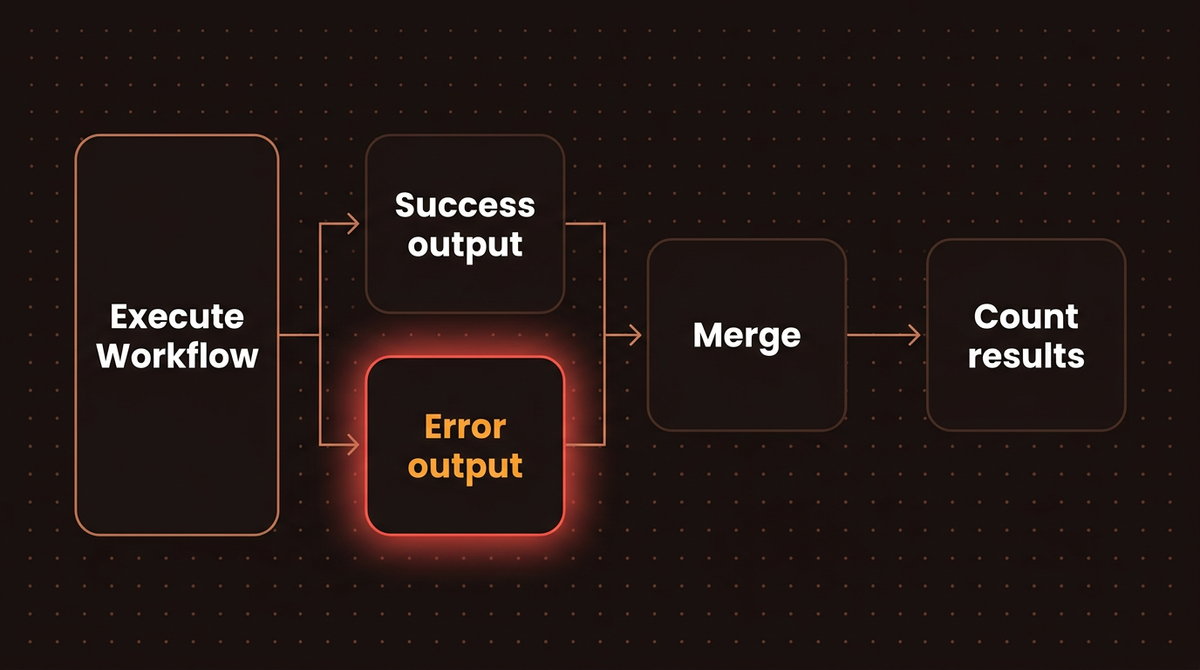
I wired the success output to a Code node that adds status: 'ok', the error output to one that adds status: 'failed', and both into a Merge node set to two inputs, then into my counter:
These are two separate Code nodes:
// Code node "Tag ok"
return $input.all().map(i => ({ json: { status: 'ok', ...i.json } }));
// Code node "Tag failed"
return $input.all().map(i => ({ json: { status: 'failed', error: i.json.error, email: i.json.email } }));
Sending the same three contacts, I got all three back in one response:
{"count":3,"rows":[
  {"status":"ok","email":"ada@example.com","name":"Ada Lovelace","domain":"example.com"},
  {"status":"ok","email":"grace@navy.mil","name":"Grace Hopper","domain":"navy.mil"},
  {"status":"failed","error":"Invalid email: not-an-email","email":"not-an-email"}]}
The failed item carries your Stop and Error message in error plus the original fields, which is enough to write it to a retry table or a Slack channel. Two caveats. The Merge only fired because both branches had data in my test. A forum user on a 2023 thread found that a Merge waiting on a second input that never arrived ended the sub workflow with no output. If one branch can be empty, test that case. And "Always Output Data" on the call node is a different switch; I did not test it here.
Step 8: Decide where the error workflow lives
An error workflow is a separate workflow whose first node is an Error Trigger; it runs when an execution fails. You attach one in Options, then Settings, then Error workflow. To create one, make a new workflow, make the Error Trigger its first node and save it. Each workflow has its own setting, so a parent and its sub workflow can both have one. I built two tiny handlers to see what fires:
| Error workflow set on | Bad contact sent | Alerts I got |
|---|---|---|
| Parent only | 1 invalid email | 1, naming the parent, last node Execute Workflow |
| Sub workflow only | 1 invalid email | 1, naming the sub workflow, last node Stop and Error |
| Both | 1 invalid email | 2, one from each handler |
My rule for this setup: set the error workflow on the workflow that something outside triggers (the webhook, the schedule) and leave shared sub workflows without one. A sub workflow called from several parents then pages you with the parent's name attached instead of an anonymous failure, and one bad record does not alert twice. If a sub workflow is only ever called from one place, either side is fine. Remember the point the Stop and Error node page makes: that node exists to fail an execution on purpose and feed custom error data to these handlers.
Troubleshooting
Workflow is not active and cannot be executed.The sub workflow is not published. Publish it, and check the call node points at the right ID.The sub-workflow (...) cannot be called by this workflowOpen the sub workflow's settings and widen This workflow can be called by.Invalid input for 'email' [item 0]The parent sent a value of the wrong type. Fix the mapping or enable Attempt to convert types.- The sub workflow shows data, the parent shows nothing. Look at the last node. A Merge as the final node, or a branch that ends on different paths, can return less than you expect. A 2025 community thread traced one case to a node with several incoming branches, and the fix was a Merge before the last node.
- A Wait node inside the sub workflow. Several users report the parent getting the data from the node before the call instead of the sub workflow's last node when the sub workflow pauses, as in this thread. I did not reproduce it, and my n8n AI agent guide notes that n8n 2.0 changed this for approval pauses, so it depends on your version. If your sub workflow waits, test the return value before building on it.
- The parent cannot trigger the sub workflow at all. The docs note that errors inside the sub workflow itself stop the parent from triggering it. Open it and clear the red nodes first.
Going further
Let an AI agent call it. The same sub workflow can be a tool. The Call n8n Workflow Tool node takes a description that tells the agent when to use it, reads your trigger's input fields, and lets the model fill them with $fromAI(). A well defined input contract, which you wrote in Step 2, is what makes this safe. If you want the agent side, my guide to n8n AI agent workflow architecture covers it, including how a parent now receives a sub workflow's final output after a pause, and connecting Claude to n8n's MCP server shows another way to expose workflows.
When not to bother. If one workflow uses the logic once and it fits on one screen, splitting adds a second place to publish, permission and monitor. Wait until the second caller shows up. If you are still deciding between platforms, the Make.com versus n8n comparison and the small business automation guide cover that choice.
If you would rather have this built and monitored for you, that is what I do: see how I build AI agents.
Frequently asked questions
What is a sub workflow in n8n?
A sub workflow is an ordinary n8n workflow that starts with the Execute Sub-workflow Trigger node and is called from another workflow with the Execute Sub-workflow node. The calling workflow passes data in, the sub workflow runs, and its last node sends the result back.
Do sub workflow executions count against my n8n plan?
Not according to the n8n docs, which state that sub workflow executions do not count toward your plan's monthly execution or active workflow limits. By that rule, splitting a large workflow into smaller ones does not use up your plan's execution allowance.
How do I get data back from an n8n sub workflow?
Whatever the last node of the sub workflow outputs is what the Execute Sub-workflow node returns. Put an Edit Fields node at the end and shape the result on purpose. In my tests, a branch that ended with no node returned nothing, and the parent got no warning.
Does the sub workflow need to be published?
When the parent ran from a production webhook, yes: an unpublished sub workflow failed with "Workflow is not active and cannot be executed." The n8n docs say the same for the Call n8n Workflow Tool used by AI agents. I did not test a manual run from the editor.
What happens to the parent if the sub workflow fails?
By default the Execute Sub-workflow node fails and the parent stops, even for the records that were fine. Set the call node's On Error option to Continue (using error output) to separate failed items from good ones and keep the rest of the run going.
Published
October 14, 2026
Category
Implementation
Jahanzaib Ahmed
AI Systems Engineer & Founder
AI Systems Engineer with 126 production systems shipped. I run AgenticMode AI (AI agents, RAG systems, voice AI) and ECOM PANDA (ecommerce agency). I build AI that works in the real world for businesses across home services, healthcare, ecommerce, SaaS, and real estate.
Related articles
How to Automate Workflow for Small Business Owners: What Actually Works in 2026
A plain-English guide to workflow automation for small business owners. Learn what to automate first, which tools to use, and how to get ROI without hiring a developer.
How toImplementationWorkflow Automation
n8n 2.0 AI Agents: The Workflow Architecture I Use Across Every Client Deployment
How I build n8n AI agent workflows for clients on n8n 2.42: the AI Agent node, memory, tool nodes, a multi agent orchestrator example, and cost control.
GuideImplementationn8n
How to Build AI Invoice Processing in n8n That Catches Bad Totals
A step by step n8n build that reads invoice PDFs from Gmail with Claude Haiku 4.5, checks the arithmetic in code, skips duplicates, and sends anything that doesn't add up to a review tab.
How toIndustry Guidesn8n